In my wanderings around classrooms I have seen a lot of teachers working with students on developing descriptive writing and expanding sentences.
I find Telescopic text the best way to show students how to expand their writing. I demonstrated to a class the other day by showing the them the 'I made tea.' first.
Next I showed them the Telescopic Text Write site. We typed in one of the simple sentences their teacher wanted them to expand around their poem 'My mother saw a Dancing Bear.'
As a class we started to add words to the sentences learning how to insert text, and fold and unfold. The students were going to carry on the next day in teams of 2 or 3 for 15 minutes, expanding that sentence and then eventually sharing their sentences with each other.
I have tried this several times with students from many different schools and it has always been very successful. Their general writing improves because they become aware of how to make sentences more interesting.
Showing posts with label Writing. Show all posts
Friday, November 6, 2015
Wednesday, October 2, 2013
Tools we have used before and forgot about #2
Wallwisher (now known as Padlet) was another old familiar tool I came across recently. I stopped using it as it was not always reliable, but it has had a revamp and seems to be working quite well. What I especially like about it is that it also works on iPads, iPhones and iPod Touches. It is not an app but you can access it through the Safari app by going to http://padlet.com/ if you are starting a new one, the URL that designates the Padlet you have created or as a QR code (try out the one to the right) which is generated for you within Padlet. You do need to set up an account to create a Padlet but your students do not need logins or accounts to access it.You can add text, graphics, movies, maps, slideshows, documents and photos from webcams.
You can embed the Padlet in a wiki or or a blog.
Below is a Padlet wall that I have had for a few years with some ideas of how to use Padlets in the classroom. Please feel free to add to it.
Labels:
inquiry,
padlet,
reading,
wallwisher,
Writing
Wednesday, March 6, 2013
Writing, Reading and Boys
I have had several people at lots of different schools talking to me about boys and literacy and how they are not doing so well according to the benchmarks they are supposed to meet. When I am in classrooms and see the types of activities that the students are doing, most of the time they are boring, prescriptive tasks that have been given to students for decades to do.
There are lots of great resources out there that have great activities that you can do with children. Some of my favourites come from Sheena Cameron who is incidentally publishing a new book on Writing this year. But we all know 'technology engages boys'. Give them a device, use your imagination and think of tasks that will grab them.
Examples I have seen recently
Task:
read through your story with your buddy and find the long 'a' vowel sounds
Observation:
Let's put the books on our head and balance, pick up debris from the ground and flick it, annoy somebody close by, giggle over something funny one of them said (sound familiar?)
So why are they doing that? They are bored, it is not engaging, they can't see the worth of it.
Suggested Solution:
give them a device (iPod Touch, iPad, laptop with camera) Task is now to record yourself saying the words, one person can take notes and write down the words with the long vowel sound, the other person can be saying the words. Yes, there will be laughter, and pulling of faces, but give them an expectation and a time limit 'I want you to find 20 long 'a' vowel words in 5 minutes, set your timers now.
Predicted Outcome:
they will have had fun, they will be engaged in the task, they will be reading, they will discover their mouth shape changes when they say the words
Task:
read your story with your buddy
Observation:
exactly the same as the observation before. When I have noticed boys to be engaged in buddy reading is when they are looking at high interest topic books such as space, dinosaurs and cars and trucks.
Suggested Solution
For buddy reading choose high interest topic books. Let them read the interactive books on the iPads, iPod touches, let them read some of the books online on the computer together.
Let the students use Sock Puppets to record themselves taking turns in reading. Apart from the laughs they will get from hearing the squeaky voice, they will hear if they are reading fluently.
Predicted Outcome:
they will talk about what they are reading, they will be engaged in their learning. They will be reading. They can share back to the group/class.
Task:
answer comprehension questions in their books
Observation:
5 minutes have gone by and they have written the date, and the number 1. They have discussed what pen or pencil they will use, they will have searched everywhere for a ruler...
Suggested Solution
Use a simple Graphic Organiser like Expanded Question or the Notability app where they can take a photo of the questions and type in their answers
Predicted Outcome
Students will stay on task and want to get started on their work
Task
Printed Worksheets
Observation
Some students like worksheets. A lot don't really care for them. I see grimaces on faces, then there becomes the long hunt for the missing pen/pencil that was there 30 seconds ago. And while we are looking for the pencil/pen we happen to drop/misplace the worksheet and will need to search or berate the person next to us for having/hiding our worksheet. Once they get to their table/desk 5 minutes later the teacher is berating them for not starting. Then starts the slide into the body slump as they take another 5 minutes to painstakingly write their name...sound familiar? Why are they doing that? Because the task is boring!
Suggested Solution
Interactive Worksheets in Google Docs/Word/Pages/PowerPoint/Keynote/Google Presentation. Have some comprehension questions, but some might link to a website where they have to search for something or read something related to their instructional text. Add a Graphic Organiser/s that may scaffold them in their answers. In PowerPoint/Keynote or Google presentation insert a YouTube movie with Questions for them to answer at different points. In Google Docs insert a drawing block where they can draw the answer to the question or they can use a Drawing app on their iPad and then insert the drawing into the Interactive Worksheet. Ask a question that allows them to photograph the answer. Mix it up a bit and have Word Study questions, Dictionary meanings etc where students can use dictionaries/thesaurus on devices, online, printed books.
This all might sound like a lot of work for the teacher but a worksheet in this format could become a template that could be used over and over again. And if you start this with your top group you will have the 'Interactive Worksheet' for the next reading group when they get to that level.
When planning your activities think how you could do the same thing creatively using technologies that will grab that reluctant child and engage him..
There are lots of great resources out there that have great activities that you can do with children. Some of my favourites come from Sheena Cameron who is incidentally publishing a new book on Writing this year. But we all know 'technology engages boys'. Give them a device, use your imagination and think of tasks that will grab them.
Examples I have seen recently
Task:
read through your story with your buddy and find the long 'a' vowel sounds
Observation:
Let's put the books on our head and balance, pick up debris from the ground and flick it, annoy somebody close by, giggle over something funny one of them said (sound familiar?)
So why are they doing that? They are bored, it is not engaging, they can't see the worth of it.
Suggested Solution:
give them a device (iPod Touch, iPad, laptop with camera) Task is now to record yourself saying the words, one person can take notes and write down the words with the long vowel sound, the other person can be saying the words. Yes, there will be laughter, and pulling of faces, but give them an expectation and a time limit 'I want you to find 20 long 'a' vowel words in 5 minutes, set your timers now.
Predicted Outcome:
they will have had fun, they will be engaged in the task, they will be reading, they will discover their mouth shape changes when they say the words
Task:
read your story with your buddy
Observation:
exactly the same as the observation before. When I have noticed boys to be engaged in buddy reading is when they are looking at high interest topic books such as space, dinosaurs and cars and trucks.Suggested Solution
For buddy reading choose high interest topic books. Let them read the interactive books on the iPads, iPod touches, let them read some of the books online on the computer together.
Let the students use Sock Puppets to record themselves taking turns in reading. Apart from the laughs they will get from hearing the squeaky voice, they will hear if they are reading fluently.
Predicted Outcome:
they will talk about what they are reading, they will be engaged in their learning. They will be reading. They can share back to the group/class.
Task:answer comprehension questions in their books
Observation:
5 minutes have gone by and they have written the date, and the number 1. They have discussed what pen or pencil they will use, they will have searched everywhere for a ruler...
Suggested Solution
Use a simple Graphic Organiser like Expanded Question or the Notability app where they can take a photo of the questions and type in their answers
Predicted Outcome
Students will stay on task and want to get started on their work
Task
Printed Worksheets
Observation
Some students like worksheets. A lot don't really care for them. I see grimaces on faces, then there becomes the long hunt for the missing pen/pencil that was there 30 seconds ago. And while we are looking for the pencil/pen we happen to drop/misplace the worksheet and will need to search or berate the person next to us for having/hiding our worksheet. Once they get to their table/desk 5 minutes later the teacher is berating them for not starting. Then starts the slide into the body slump as they take another 5 minutes to painstakingly write their name...sound familiar? Why are they doing that? Because the task is boring!
Suggested Solution
Interactive Worksheets in Google Docs/Word/Pages/PowerPoint/Keynote/Google Presentation. Have some comprehension questions, but some might link to a website where they have to search for something or read something related to their instructional text. Add a Graphic Organiser/s that may scaffold them in their answers. In PowerPoint/Keynote or Google presentation insert a YouTube movie with Questions for them to answer at different points. In Google Docs insert a drawing block where they can draw the answer to the question or they can use a Drawing app on their iPad and then insert the drawing into the Interactive Worksheet. Ask a question that allows them to photograph the answer. Mix it up a bit and have Word Study questions, Dictionary meanings etc where students can use dictionaries/thesaurus on devices, online, printed books.
This all might sound like a lot of work for the teacher but a worksheet in this format could become a template that could be used over and over again. And if you start this with your top group you will have the 'Interactive Worksheet' for the next reading group when they get to that level.
When planning your activities think how you could do the same thing creatively using technologies that will grab that reluctant child and engage him..
Friday, November 23, 2012
Motivating writing using Apple Mac's Keynote
I was playing around with photos with a teacher today and showing her how to do masking and Alpha masking. When you do the alpha masking you need a fairly plain background.

I used this photograph of my dog and then removed the background green of the grass by clicking on the Alpha button on the toolbar.
Then I dragged another photo of scenery (a photo I took at Cooks Beach) on top of the dog and sent the background to the back.
The next step was to click on the dog and change the Opacity so he looks ghostly.
I then went to View - Show Presenter notes and now students can write their stories about the picture.

Take a screen capture of the photo and add it to a Presentation in Google Docs. Make a file up different pictures.

I used this photograph of my dog and then removed the background green of the grass by clicking on the Alpha button on the toolbar.
Then I dragged another photo of scenery (a photo I took at Cooks Beach) on top of the dog and sent the background to the back.
The next step was to click on the dog and change the Opacity so he looks ghostly.
I then went to View - Show Presenter notes and now students can write their stories about the picture.

Take a screen capture of the photo and add it to a Presentation in Google Docs. Make a file up different pictures.
Thursday, November 1, 2012
Tools we have used before and forgot about #1
Telescopic Text
I blogged about this back in October 2009 and posted on my Literacy wiki a couple of years ago. Telescopic text is a great way of showing students how to expand their sentences. The original Telescopic text starts off with a sentence, click on a shaded word to see how it expands.
You can now make your own Telescopic text, and/or you can also have an account where you can save them and return to them later.
These would work well as an IWB activity where groups of children can collaborate on one piece of writing. Or if you have access to several computers, students can be independently writing their own and sharing their different stories later, which could possibly be further edited.
Yesterday I was working with a teacher and we were thinking about different ways to make a student's reading experience more fun and interesting and then to link it into his writing. The following poem was part of the story she was going to use with him from a Junior Journal (Junior Journal 36, Dancing Bees by Lynette Bradley.) and it is perfect for enlarging and adding to.
So here is a tool that you should add to your 'Teacher Digital Toolkit'.
I blogged about this back in October 2009 and posted on my Literacy wiki a couple of years ago. Telescopic text is a great way of showing students how to expand their sentences. The original Telescopic text starts off with a sentence, click on a shaded word to see how it expands.
You can now make your own Telescopic text, and/or you can also have an account where you can save them and return to them later.
These would work well as an IWB activity where groups of children can collaborate on one piece of writing. Or if you have access to several computers, students can be independently writing their own and sharing their different stories later, which could possibly be further edited.
Yesterday I was working with a teacher and we were thinking about different ways to make a student's reading experience more fun and interesting and then to link it into his writing. The following poem was part of the story she was going to use with him from a Junior Journal (Junior Journal 36, Dancing Bees by Lynette Bradley.) and it is perfect for enlarging and adding to.
So here is a tool that you should add to your 'Teacher Digital Toolkit'.
Sunday, October 7, 2012
Junior Digital Toolkit for Writing
There are so many digital tools available to students.
How can you manage them?
Which is the best tool?
How can we share them out?
How can we remember to use them?
I have talked a lot about the necessity of students having their own 'Digital Toolkit'.
The diagram below shows an example of an overall 'Junior Digital Toolkit'.
There are 3 main digital tools
And then I have done the same with the iPad/iPod Touch
As the students progress and become more proficient, I would add more software and apps tools until they have a wide selection and choice about what they could use.
Now let's put this into practice. Below is the Writers Digital Toolkit at the beginning of the year
Students are clearly able to see what their choices are for when Drafting and Publishing.
As the year moves on, more apps, software and online tools can be added.
There needs to be a monitoring system put in place to see what students are using. For very young children I might have a Sticker chart.
For older, more independent students I would have individual Check lists that are either kept in a Clearfile folder or as a Google Doc.
Putting management techniques such as this in place teaches students to be independent, collaborative and self managing. Students need to know what is available for them to use and that they have a choice in the way they want to learn.
How can you manage them?
Which is the best tool?
How can we share them out?
How can we remember to use them?
I have talked a lot about the necessity of students having their own 'Digital Toolkit'.
- They need to know what is available
- They need to know 'how' they can use this toolkit
The diagram below shows an example of an overall 'Junior Digital Toolkit'.
There are 3 main digital tools
- Laptop
- iPad/iPod Touch
- Easi Speak
Writing stories - Kidspiration or Pages
Playing Games -Wiki
Make Movies - iMovie
Writing stories - Notes or Pages
Drawing - Create a draw
Making Music - Garageband
As the students progress and become more proficient, I would add more software and apps tools until they have a wide selection and choice about what they could use.
Now let's put this into practice. Below is the Writers Digital Toolkit at the beginning of the year
As the year moves on, more apps, software and online tools can be added.
Putting management techniques such as this in place teaches students to be independent, collaborative and self managing. Students need to know what is available for them to use and that they have a choice in the way they want to learn.
Thursday, June 14, 2012
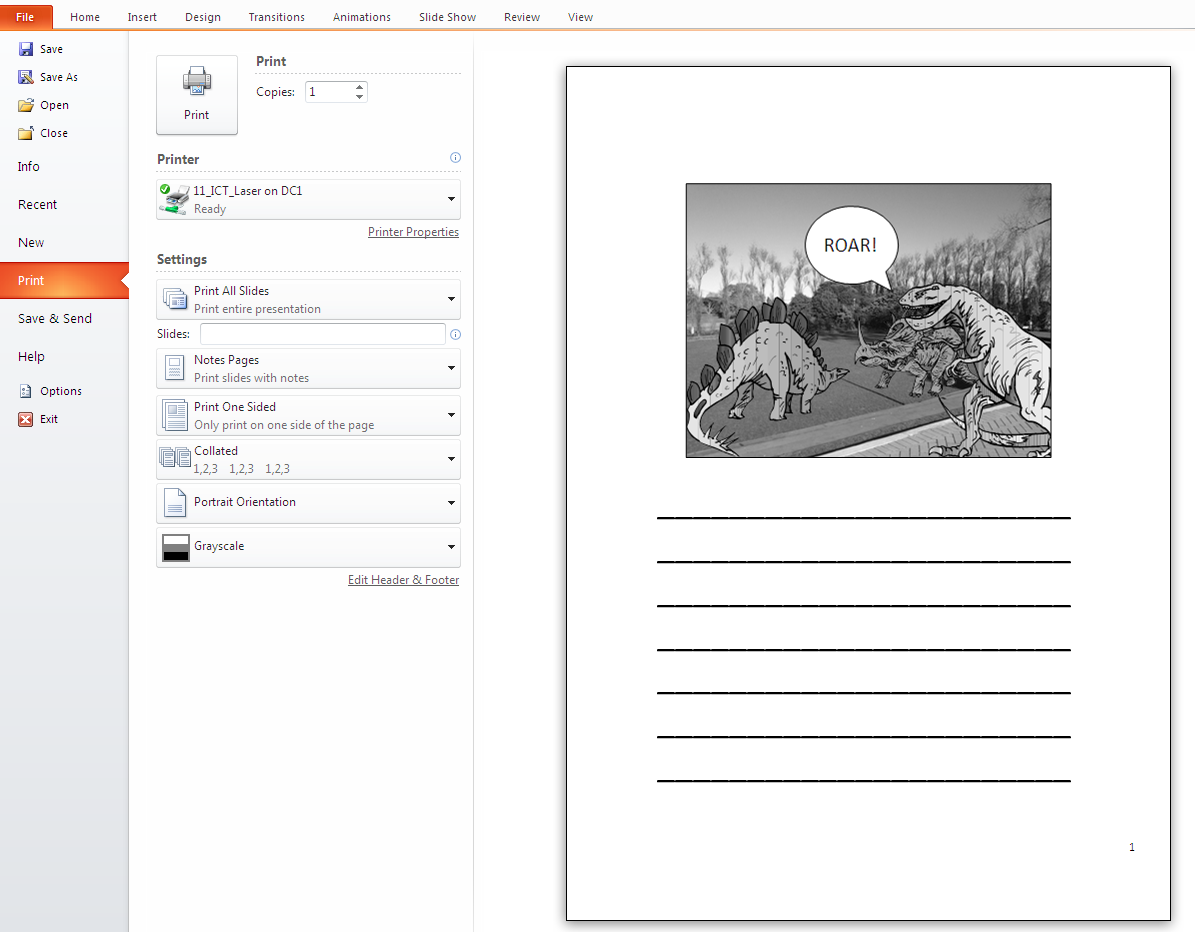
PowerPoint motivating writing tip
Then go to Insert - Clipart and select clipart that has white backgrounds. If you have white background appear on your graphic you will have to make it transparent by clicking on 'Remove Background' in the Format menu.
Click on the Home button and choose speech bubbles from the Insert Shapes menu.
To add writing lines click where it says 'Click to Add Notes' which is just below your main screen. Hold down your Shift key and minus - key on the keyboard. This will make lines. Once you have made several lines, press Ctrl A (Command A for Mac) to highlight all of the lines. Change the font size to about 36. Don't worry if you see no change yet.
Go to File - Print
Click on Full Page slides and change to Notes.
Check to see if your lines are the right width.
Print.
Students can now use this as a motivator for their drafting and editing. You could print out another copy in colour and use that as the final publishing.
For younger students you could make a PowerPoint template with the photo background embedded in the Master page. Go to View - Master - Slide Master, insert a background photo in the usual way and delete the slide master frames that show up, click on Close or Close Master.
Then save as a template by going to File - Save As, select PowerPoint Template under the Format dropdown menu, name it and click Save.
Wednesday, March 21, 2012
Student Digital Toolkit
It is becoming more apparent as teachers and students get more familiar with the online digital tools and devices that there needs to be some management of these. Some teachers still get tied up with the old adage that all the students in the class has to 'produce a product at the end using this tool'.
It doesn't have to be so...I encourage teachers to have a 'Teacher Digital Toolkit'
This is an example of a basic one
For more teacher tools go to this website.
Students need a Digital Toolkit as well. I am working on 2 different websites at the moment, one is called
Publishing Ideas
and the other is called Web 2 tools and Widgets
The following could be an example of a Student Digital Toolkit
It doesn't have to be so...I encourage teachers to have a 'Teacher Digital Toolkit'
This is an example of a basic one
For more teacher tools go to this website.
Students need a Digital Toolkit as well. I am working on 2 different websites at the moment, one is called
Publishing Ideas
- ways to publish using online and offline tools
- variety of ways to publish i.e cartoons and comics
and the other is called Web 2 tools and Widgets
- tools and widgets that will enhance your blog or wiki
- photo presentation tools
The following could be an example of a Student Digital Toolkit
Thursday, May 19, 2011
Publishing Junior stories
One of my junior teachers has had a frustrating time trying to publish her Year one students' stories. She uses Word and has a frame for her Picture box and a text box below that for the story. After she has saved 24 pages of this format and typed in her students' stories, text boxes and frames have moved and she has the tiresome task of moving all the boxes in place again. She asked if there was a way of anchoring the text boxes, but unfortunately there is not. So I came up with the idea of making a PowerPoint Template.
Once you have the template looking the way you want it, then duplicate the slide by clicking on it once in the slide tray, Press Ctrl D or Command D however many times you need copies.
Go File - Save as and Choose Template from the dropdown menu. Make sure that you know where it is saving to as when you choose 'Template' it defaults back to Template folder.
Now when this teacher publishes her students' work, she can open up this template, type in the stories, no text boxes will move around and she can print it out for the students to illustrate. Once she saves it, she still has the blank template to use over again.
- Open up PowerPoint, choose plain template
- Go to File - Page Setup and change Page Orientation to Portrait
- Next choose a Layout, choose one with a Text box space, she deleted the title
- Next resize the text box and add a square shape for the picture box, move them to where you want them, set your font and size
- Remove the bullet points from text by clicking on the bullet point button on toolbar
- Last step is fix the rulers, because when you remove the bullet point the second line of text indents and you need to fix that
Once you have the template looking the way you want it, then duplicate the slide by clicking on it once in the slide tray, Press Ctrl D or Command D however many times you need copies.
Go File - Save as and Choose Template from the dropdown menu. Make sure that you know where it is saving to as when you choose 'Template' it defaults back to Template folder.
Now when this teacher publishes her students' work, she can open up this template, type in the stories, no text boxes will move around and she can print it out for the students to illustrate. Once she saves it, she still has the blank template to use over again.
Wednesday, May 4, 2011
Day 3 e-Learning in the Classroom
Maths
Students are working well through the activities, some of them need to be reminded that they have to record their scores from the online math activities. Children who were working on the mimio workshop are learning to be co-operative with each other so that they share ownership of the mimio pen!
Reading
The reading session went extremely well today. Students were moving from task to task independently.

We introduced two new options, the audiobook on the iPod touch and the Easi-speak microphone.
The students with the Easi-Speak had a great time recording themselves reading a story and listening to themselves reading it.
Students sat with the iPod touch, the splitter and head phones and listened to 'The Lion, the Witch and the Wardrobe' audiobook.
The children are also very fond of using the flip video to record their plays.
Writing
The students are getting into the swing of using the Writing task board. They were all moving their names across to the appropriate column. Some of the students started on the Conferencing options. At this school the students can't print from the school computers, only the teachers laptop is enabled to print so we are adding another management space to the Writing task board 'Ready to print' so that the teacher knows which students have work to print out, and can print it out at a time that is convenient to them.
Handwriting, Keyboarding and Spelling
The blending of these subjects is working well. Students know who are on the computers for Keyboarding and Spelling, while the others do their Handwriting and Spelling in their books. Keyboarding is already starting to improve.
Several children are confident with the Home keys (asdf jkl;) so I have started them off on the Keyboarding cards.
Students are working well through the activities, some of them need to be reminded that they have to record their scores from the online math activities. Children who were working on the mimio workshop are learning to be co-operative with each other so that they share ownership of the mimio pen!
Reading
The reading session went extremely well today. Students were moving from task to task independently.

We introduced two new options, the audiobook on the iPod touch and the Easi-speak microphone.
The students with the Easi-Speak had a great time recording themselves reading a story and listening to themselves reading it.
Students sat with the iPod touch, the splitter and head phones and listened to 'The Lion, the Witch and the Wardrobe' audiobook.
The children are also very fond of using the flip video to record their plays.
Writing
The students are getting into the swing of using the Writing task board. They were all moving their names across to the appropriate column. Some of the students started on the Conferencing options. At this school the students can't print from the school computers, only the teachers laptop is enabled to print so we are adding another management space to the Writing task board 'Ready to print' so that the teacher knows which students have work to print out, and can print it out at a time that is convenient to them.
Handwriting, Keyboarding and Spelling
The blending of these subjects is working well. Students know who are on the computers for Keyboarding and Spelling, while the others do their Handwriting and Spelling in their books. Keyboarding is already starting to improve.
Several children are confident with the Home keys (asdf jkl;) so I have started them off on the Keyboarding cards.
Tuesday, May 3, 2011
Day 2 e-Learning Classroom
Another great day in the classroom. The children settled down to their tasks straight away and were not phased by all of the teachers in the room observing them.
Maths
Most of the students realised that they needed to write their progress and answers in their maths books. The teacher of the class was amazed by 3 children who were working on the 3 computers in the withdrawal space. He expected them to be not on task, but they were totally involved in what they were doing occasionally helping each other at the same time.

I also noticed that the teacher was able to leave the students (He feels comfortable enough to let go of control) who were working on the workshop for short periods of time to look around the room at what the other students were doing. There were not enough computers for all of the students but they all managed to co-operate well with each other.
Reading
The students understand how the task board works now and are eager to try out the different options, especially the iPad stories. So that we can find out what activities the students like doing the most they will fill in the following tracking sheet
This will assist in future planning of activities and also identify individual student preferences.
One group of students went with the 'Grab some friends and act out a play'. We gave them a Flip Video camera and they videoed their efforts. Their first effort they viewed away from the rest of the class, lots of laughing but they soon realised that they needed to make some drastic changes. They went outside and did it again and did a great job!
The students who aren't on the computers continue with doing their spelling in their spelling books.
Maths
Most of the students realised that they needed to write their progress and answers in their maths books. The teacher of the class was amazed by 3 children who were working on the 3 computers in the withdrawal space. He expected them to be not on task, but they were totally involved in what they were doing occasionally helping each other at the same time.
I also noticed that the teacher was able to leave the students (He feels comfortable enough to let go of control) who were working on the workshop for short periods of time to look around the room at what the other students were doing. There were not enough computers for all of the students but they all managed to co-operate well with each other.
Reading
The students understand how the task board works now and are eager to try out the different options, especially the iPad stories. So that we can find out what activities the students like doing the most they will fill in the following tracking sheet
This will assist in future planning of activities and also identify individual student preferences.
One group of students went with the 'Grab some friends and act out a play'. We gave them a Flip Video camera and they videoed their efforts. Their first effort they viewed away from the rest of the class, lots of laughing but they soon realised that they needed to make some drastic changes. They went outside and did it again and did a great job!
Spaces
Gareth created a secret space today and introduced it to the children as a 'Quiet Space'. The students used it well today. This photo was taken when another student came and told me that the child in the Quiet Space had been there for a long time, when I went and looked this kid was reading quietly with another student.Writing
Gareth talked about Conjunctions in the writing process today. Teachers who were observing were amazed at the level of engagement with the children that were working on the iPads and iPhone. Students are now starting to use the Writing Management Board as they move from the Drafting stage to Editing and Conferencing. We will be introducing the conferencing choices tomorrow.Handwriting, Spelling, Keyboarding
Already the students are concentrating consciously on their keyboarding skills. Most children had 2 hands on the keyboard and were touching the space bar with their thumbs. We have timetabled 9 children everyday to do Keyboarding exercises rather than Handwriting and then they can continue with their Spelling activities after 10 minutes of typing practice.The students who aren't on the computers continue with doing their spelling in their spelling books.
P.E
Gareth has made a 'Large Ball skills' assessment sheet for his children. They looked over what was expected of them, students took turns at videoing groups of other students. When they came inside they watched themselves and critiqued their performance. They now have their learning goals for the next P.E session.Art
The topic at the moment is Disasters so Gareth prepared a PowerPoint with images to do with disasters. Students will be creating their own disaster icons for posters. Everybody started off on paper and I worked with a couple of children on Paint. More about this tomorrow!
Monday, May 2, 2011
Starting an e-Learning classroom
This week I am working with another teacher in a Year 4 classroom. We have the beginnings of setting up an e-Learning classroom. This teacher has had to make quite a few dramatic changes in teaching practice to operate fully in an e-Learning environment.
The class has 4 computers and 5 laptops. I have taken in 3 iPads and today I even let the students use my iPhone.
Gareth and I met for one day to plan last term. I talked to him about what an e-Learning classroom can look like. I created a cutdown version of the action plan that my teachers in the e-Learning classroom are using (theirs goes for the year).
I created the wiki for the class and we are treating it as the portal for the students to their learning.
We introduced the children to it first thing in the morning. Before school started I taught 3 students how to make a weemee and they continued through the day when there was a spare moment to teach someone else.
Rules
We talked about rules.
The emphasis was on being co-operative, collaborative and self-managing.
Maths
We introduced the Measurement task sheet
and then the Measurement Workshop
and finally the Measurement Website. The students were then given the choice of what activities they had to do, we only had time for a short trial so they were allowed to go to one task and try it out. Some students worked in pairs, some worked alone, some worked on the Workshop with Gareth. The children grasped the concept of working like that incredibly fast and there was a wonderful working hum in the classroom. It will be interesting to see how they go tomorrow self managing themselves.
Reading
Gareth has created interactive worksheets around the student readers for the week. I will post examples of these on the website and in a blog post tomorrow. Students read with the teacher, then worked on their interactive worksheet and then their third task was to choose from the options. More about this tomorrow.
Writing
I created this teaching PowerPoint on Argument writing and Gareth introduced it today.
Students were shown the Word Graphic Organiser template.
Nine students worked on computers drafting straight onto the Graphic Organiser. Two worked on the iPads and one on the iPhone. The rest worked on the print outs of the Graphic Organisers.
As it was not the full amount time allowed for writing today, they will continue with this tomorrow.
Keyboarding
Keyboarding was introduced briefly and all students pasted in a photocopied version of a keyboard, and coloured in the home keys. As I wandered around the students while they were typing today I was constantly saying "Two hands on the keyboard, thumbs only on the space bar!"
It was a great start to the week. These 7 and 8 year old students adapted so easily and quickly to the new ways of doing things in their class. On my advice the teacher got rid of some desks and replaced them with tables. The students were very surprised to start off with but very quickly got used to their tote trays and sitting wherever they wanted around the tables. We will be having quite a few teachers observing over the week so it will be interesting to see how the students cope with that as well, judging by today they will be all little champions.
The class has 4 computers and 5 laptops. I have taken in 3 iPads and today I even let the students use my iPhone.
Gareth and I met for one day to plan last term. I talked to him about what an e-Learning classroom can look like. I created a cutdown version of the action plan that my teachers in the e-Learning classroom are using (theirs goes for the year).
I created the wiki for the class and we are treating it as the portal for the students to their learning.
We introduced the children to it first thing in the morning. Before school started I taught 3 students how to make a weemee and they continued through the day when there was a spare moment to teach someone else.
Rules
We talked about rules.
The emphasis was on being co-operative, collaborative and self-managing.
Maths
We introduced the Measurement task sheet
and then the Measurement Workshop
and finally the Measurement Website. The students were then given the choice of what activities they had to do, we only had time for a short trial so they were allowed to go to one task and try it out. Some students worked in pairs, some worked alone, some worked on the Workshop with Gareth. The children grasped the concept of working like that incredibly fast and there was a wonderful working hum in the classroom. It will be interesting to see how they go tomorrow self managing themselves.
Reading
Gareth has created interactive worksheets around the student readers for the week. I will post examples of these on the website and in a blog post tomorrow. Students read with the teacher, then worked on their interactive worksheet and then their third task was to choose from the options. More about this tomorrow.
Writing
I created this teaching PowerPoint on Argument writing and Gareth introduced it today.
Students were shown the Word Graphic Organiser template.
Nine students worked on computers drafting straight onto the Graphic Organiser. Two worked on the iPads and one on the iPhone. The rest worked on the print outs of the Graphic Organisers.
As it was not the full amount time allowed for writing today, they will continue with this tomorrow.
Keyboarding
Keyboarding was introduced briefly and all students pasted in a photocopied version of a keyboard, and coloured in the home keys. As I wandered around the students while they were typing today I was constantly saying "Two hands on the keyboard, thumbs only on the space bar!"
It was a great start to the week. These 7 and 8 year old students adapted so easily and quickly to the new ways of doing things in their class. On my advice the teacher got rid of some desks and replaced them with tables. The students were very surprised to start off with but very quickly got used to their tote trays and sitting wherever they wanted around the tables. We will be having quite a few teachers observing over the week so it will be interesting to see how the students cope with that as well, judging by today they will be all little champions.
Monday, March 7, 2011
Visual Publishing
I saw students publishing their autobiographies today in Word, with a border and a fancy heading. Children were working alone, typing one finger each letter as they copied from their writing books. They look bored and uninterested in what they were doing.
Another teacher said to me, I want to do something more interesting or exciting when I get my students to publish their autobiographies, they aren't able to write much. This school has very limited access to internet, they cannot publish online so we needed to use what was available on the computer. They had Inspiration version 8! I was elated!
I started showing the teacher how they could create a visual autobiography.
We set up a template for students to use...
Then we looked at how you could add pictures, Inspiration 8 and 9 have a great search feature (unfortunately the search feature is blocked at this particular school).
Other choices of graphics are students creating their own graphics in Paint, Artrage or Kidpix.
Or you could go to Google Images and find graphics, there are quite a few free graphic sites that show up in Google Images such as http://www.cartoonclipartworld.com/
Use Google images to find graphics of maps and places as well.
There are lots of skills children will learn 'just in time' and 'as needed' in an authentic context.
Another teacher said to me, I want to do something more interesting or exciting when I get my students to publish their autobiographies, they aren't able to write much. This school has very limited access to internet, they cannot publish online so we needed to use what was available on the computer. They had Inspiration version 8! I was elated!
I started showing the teacher how they could create a visual autobiography.
We set up a template for students to use...
Then we looked at how you could add pictures, Inspiration 8 and 9 have a great search feature (unfortunately the search feature is blocked at this particular school).
Other choices of graphics are students creating their own graphics in Paint, Artrage or Kidpix.
Or you could go to Google Images and find graphics, there are quite a few free graphic sites that show up in Google Images such as http://www.cartoonclipartworld.com/
Use Google images to find graphics of maps and places as well.
Subscribe to:
Posts (Atom)