Tuesday, May 3, 2011

Day 2 e-Learning Classroom

Another great day in the classroom. The children settled down to their tasks straight away and were not phased by all of the teachers in the room observing them.
Maths
Most of the students realised that they needed to write their progress and answers in their maths books. The teacher of the class was amazed by 3 children who were working on the 3 computers in the withdrawal space. He expected them to be not on task, but they were totally involved in what they were doing occasionally helping each other at the same time.


I also noticed that the teacher was able to leave the students (He feels comfortable enough to let go of control)  who were working on the workshop for short periods of time to look around the room at what the other students were doing. There were not enough computers for all of the students but they all managed to co-operate well with each other.


Reading
The students understand how the task board works now and are eager to try out the different options, especially the iPad stories. So that we can find out what activities the students like doing the most they will fill in the following tracking sheet

This will assist in future planning of activities and also identify individual student preferences.
One group of students went with the 'Grab some friends and act out a play'. We gave them a Flip Video camera and they videoed their efforts. Their first effort they viewed away from the rest of the class, lots of laughing but they soon realised that they needed to make some drastic changes. They went outside and did it again and did a great job!


Spaces
Gareth created a secret space today and introduced it to the children as a 'Quiet Space'. The students used it well today. This photo was taken when another student came and told me that the child in the Quiet Space had been there for a long time, when I went and looked this kid was reading quietly with another student.


Writing
Gareth talked about Conjunctions in the writing process today. Teachers who were observing were amazed at the level of engagement with the children that were working on the iPads and iPhone. Students are now starting to use the Writing Management Board as they move from the Drafting stage to Editing and Conferencing. We will be introducing the conferencing choices tomorrow.

Handwriting, Spelling, Keyboarding
Already the students are concentrating consciously on their keyboarding skills. Most children had 2 hands on the keyboard and were touching the space bar with their thumbs. We have timetabled 9 children everyday to do Keyboarding exercises rather than Handwriting and then they can continue with their Spelling activities after 10 minutes of typing practice.
The students who aren't on the computers continue with doing their spelling in their spelling books.

P.E
Gareth has made a 'Large Ball skills' assessment sheet for his children. They looked over what was expected of them, students took turns at videoing groups of other students. When they came inside they watched themselves and critiqued their performance. They now have their learning goals for the next P.E session.


Art
The topic at the moment is Disasters so Gareth prepared a PowerPoint with images to do with disasters. Students will be creating their own disaster icons for posters. Everybody started off on paper and I worked with a couple of children on Paint. More about this tomorrow!

Monday, May 2, 2011

Starting an e-Learning classroom

This week I am working with another teacher in a Year 4 classroom. We have the beginnings of setting up an e-Learning classroom. This teacher has had to make quite a few dramatic changes in teaching practice to operate fully in an e-Learning environment.
The class has 4 computers and 5 laptops. I have taken in 3 iPads and today I even let the students use my iPhone.

Gareth and I met for one day to plan last term.  I talked to him about what an e-Learning classroom can look like. I created a cutdown version of the action plan that my teachers in the e-Learning classroom are using (theirs goes for the year).


I created the wiki for the class and we are treating it as the portal for the students to their learning.
 We introduced the children to it first thing in the morning. Before school started I taught 3 students how to make a weemee and they continued through the day when there was a spare moment to teach someone else.
Rules
We talked about rules.

 The emphasis was on being co-operative, collaborative and self-managing.


Maths
We introduced the Measurement task sheet

and then the Measurement Workshop

and finally the Measurement Website. The students were then given the choice of what activities they had to do, we only had time for a short trial so they were allowed to go to one task and try it out. Some students worked in pairs, some worked alone, some worked on the Workshop with Gareth. The children grasped the concept of working like that incredibly fast and there was a wonderful working hum in the classroom. It will be interesting to see how they go tomorrow self managing themselves.

Reading
Gareth has created interactive worksheets around the student readers for the week. I will post examples of these on the website and in a blog post tomorrow. Students read with the teacher, then worked on their interactive worksheet and then their third task was to choose from the options. More about this tomorrow.

Writing
I created this teaching PowerPoint on Argument writing and Gareth introduced it today.
Students were shown the Word Graphic Organiser template.
Nine students worked on computers drafting straight onto the Graphic Organiser. Two worked on the iPads and one on the iPhone. The rest worked on the print outs of the Graphic Organisers.


As it was not the full amount time allowed for writing today, they will continue with this tomorrow.

Keyboarding
Keyboarding was introduced briefly and all students pasted in a photocopied version of a keyboard, and coloured in the home keys. As I wandered around the students while they were typing today I was constantly saying "Two hands on the keyboard, thumbs only on the space bar!"

It was a great start to the week. These 7 and 8 year old students adapted so easily and quickly to the new ways of doing things in their class. On my advice the teacher got rid of some desks and replaced them with tables. The students were very surprised to start off with but very quickly got used to their tote trays and sitting wherever they wanted around the tables. We will be having quite a few teachers observing over the week so it will be interesting to see how the students cope with that as well, judging by today they will be all little champions.

Thursday, March 10, 2011

Self review and setting Goals

I have been talking quite a bit to teachers about students documenting their own Personal Learning Journey. It is loosely based on 'Ipsative' Assessment which is the measurement of where we were, where we are now and where we want to be. The following diagrams build on that with the student deciding with the teacher what they are going to have to do to succeed with their goal. The junior one is more simplified then the senior example.
Click on the diagrams to see them in full view.
Junior

Senior
These were created in Kidspiration and Inspiration. Students can type into them or they can be printed out and students write in them.

The examples are available for download on this site

Monday, March 7, 2011

Visual Publishing

I saw students publishing their autobiographies today in Word, with a border and a fancy heading. Children were working alone, typing one finger each letter as they copied from their writing books. They look bored and uninterested in what they were doing.

Another teacher said to me, I want to do something more interesting or exciting when I get my students to publish their autobiographies, they aren't able to write much. This school has very limited access to internet, they cannot publish online so we needed to use what was available on the computer. They had Inspiration version 8! I was elated!
I started showing the teacher how they could create a visual autobiography.
We set up a template for students to use...
Then we looked at how you could add pictures, Inspiration 8 and 9 have a great search feature (unfortunately the search feature is blocked at this particular school).
Other choices of graphics are students creating their own graphics in Paint, Artrage or Kidpix.
Or you could go to Google Images and find graphics, there are quite a few free graphic sites that show up in Google Images such as http://www.cartoonclipartworld.com/
Use Google images to find graphics of maps and places as well.
 
There are lots of skills children will learn 'just in time' and 'as needed' in an authentic context.

Thursday, March 3, 2011

Keyboarding skills...do we need to teach them?

I am hearing the same old story at all my schools and I am seeing it myself as I wander around the classrooms. Teachers are complaining about the slowness of students typing on the computer. I am astounded that I still see Year 6 children typing with one finger while they rest their head on their other hand!
So...do we need to teach typing skills?
Yes we do! They do not gain keyboarding skills by 'osmosis'.

But it doesn't have to be a new subject that has to be taught, it can be integrated into what you are already doing in the classroom.
One method I use is to print out a keyboard for each child, stick it in the back of Spelling book, practice your spelling words by typing them...
...or in the back of a Handwriting book, practice your Home Keys before you start your Handwriting.

Plain Windows Keyboard
View more presentations from Jacqui Sharp

Make up a learning centre with laminated coloured keyboards
 
Colour Win Keyboard
View more presentations from Jacqui Sharp

and bag these activities for use in Options, tumbles or Wet Day activities
Typing Practice Cards 64
View more documents from Jacqui Sharp

Part of your observations, working with and walking around should involve you always encouraging students to

"thumbs only on the space bar"
"Pinkies only on the shift and delete key"
"always rest your fingers on the Home Keys"
"don't cross over the Magic Line"
You can also teach keyboarding skills while modelling writing.

For Mac versions of Keyboards and more keyboarding ideas and resources go to my Keyboarding wiki page. 

Friday, December 3, 2010

Using Social Media in the Classroom

Facebook is well known as personal social media. But it is also possible to be a useful tool to use in education.
Jane Danielson is documenting her school's journey into the use of Social Media and how it is becoming an integral part of the communication lines between school and community. http://janedanielson.blogspot.com/

A lot of the teachers that I work with are disappointed with parent  interaction with their blogs and wikis and would like feedback from them on children's work. Jane has discovered from the large take up of 'Liking' the school's Public page and through comments left on the school's public profile page that a lot of parents have Facebook and that they seem to regularly check it. Feedback from parents say that they like this method of communication.

How could you use Facebook in the classroom?

You can add a 'Public Profile Page' to your personal account. This is your connection to the parents in your class.This will enable you to post updates to your Public Profile page like
  • updates to wikis and blogs
  • links to websites or articles
  • reminders about events that are coming up
  • requests for parents to check student pages
How does this affect your personal Facebook?

When somebody clicks the Like button on your Facebook link, they will receive only the updates you put on your Public Profile page, they do not get your personal updates and you do not get theirs.

How do I set up a Public Profile page?
  • Log into your Facebook page
  • open another tab on your browser (Ctrl T or Command T)
  • go to this website http://www.facebook.com/pages/create.php 
  • click on Local Business, choose Education
  • Type in the Page Name in space provided 
  • Tick the 'I'm the official representative...'
  • Click Create Official Page
  • Click on Create Page
  • Add a brand image and information 
  • Add your first post (it might be a link to latest blog or wiki update) by clicking on Post Update
 

  • Click on the Like button
  • Now you need to create a Like box to go onto your wiki or blog for parents to click on so that they will receive your updates
  • Click on http://developers.facebook.com/docs/reference/plugins/like-box
  • Paste in the internet address for your Public Facebook page
  • Make changes to the width and colour of theme
  • Click on Get Code and copy the code
  • Go to your Wiki, click on Edit Navigation, Click where you want it to go, click on Widget then other, paste the code, click Ok and then Save
  • To add to a blog, go to the Dashboard, click on add a Gadget, click on HTML/JavaScript, paste code, click Save, drag the gadget to where you want it on the side panel, click Save


If you want to communicate with the parents of  your children in your class, then try using the social media tool of Facebook to reach them. This just might encourage them to look at your blogs and wikis and comment on their children's work.
But be aware this is not for your children's use, Facebook has a R13 rating so your students if they are under the age of 13 are not legally allowed to have a Facebook page so it is not appropriate for them to 'Like' your public profile page let alone comment on it. If this does happen, then you will need to inform parents through a post on your Facebook page about the legalities and also talk to the children in your class.


Saturday, November 27, 2010

Talking Technology and e-Learning to Parents

I was asked to talk to a group of parents recently about e-Learning. I usually talk to teachers so this was a new experience for me. A small group of parents got it, a lot didn't!
So...what was the problem?
One man said ' I may be old fashioned but what about the 3 'R's! It is an important question, the answer... is that they are still there but are being delivered to students in a different way.

Another thing that bothered me was a parent saying 'My daughter cannot tell me what 7x 4 is, or it takes her a while to think what the answer is (she is obviously using strategies to work it out). I thought to myself 'Well really? How important is it to know what 7x 4 is?' We have calculators available to us everywhere. I know of very successful accountants who don't know their timetables, they use the tools that are available to them to solve the problem. Some parents of today expect their children to be taught as they were taught when they were at school, as this parent said 'I learned by rote and I know my timetables'. The argument could be that this is the type of learner he is, or he has a stronger intelligence in that area but his daughter does not.

 The point is that the skills we need change with time and technology... as a checkout operator in a Supermarket in the late 70s, I had to count back change to customers as per company protocol e.g if an order was $10.30 and they gave me $20 then I had to count back the change to the customer
'$10.30 and 20c is 50, 50c is $11, $2 is $13, $2 is $15 and $5 is $20.00
A few years later machines came in that gave you exactly how much change you needed to give to the customer. That skill I had, has not been used up until this day.

Parents do want to see 1-1 computing. They want children to have their own computers. I see 1-1 computing replacing rows of desks with rows of laptops, and the blackboard of yesteryear is now an IWB. The only difference between the classroom of the early 1900s and now is the technology. I am seeing a lot of teachers using their IWB as the old 'chalk and talk' but that will change as they get more familiar with the software and start creating authentic resources that students can use.

Parents were worried that Handwriting and Spelling would not be in the programme anymore and what was a maths and reading session going to look like. We reassured them that those programmes still happen, the teaching and learning still happen but with the aid of a variety of technologies in a student centred classroom.
Another parent said he was worried about the work load on the teachers, how could they manage 26 students doing different things with lots of equipment in lots of groups. The Principal was able to answer "We teach like that in traditional classrooms!' She went on to explain how we group teach.

Traditional style teaching
  • A group with the teacher for instructional work,
  • A group working on individual specific worksheet/ or reading book activity that had been designed for their group
  • A group on computers individually working through a graphic organiser Character Study
  • A group listening to stories on the listening post
  • A group reading from their group box of books at their level
e-Learning class
  • A group with the teacher for instructional work using iPads to tap out answers to questions teacher asks
  • A group working together in smaller groups on a specific online worksheet/ or reading book activity that had been designed for their group
  • A group on computers (in pairs or threes) working through a graphic organiser Character Study, discussing character traits, looking through the novel in their hands to find more information, sharing their answers
  • A group listening to an audiobook on the iPod via a 5 way splitter whilst reading from the paperback copy at the same time
  • A group choosing from the reading options which could include a variety of activities using technologies or non digital materials
It was interesting to see and hear parents reactions to this way of learning. Human nature is to go with what we know and what we believe works, change is unknown and threatening. We need to think about how we can help parents to transition to this way of learning.
The e learning classroom
View more presentations from Jacqui Sharp.

Since I wrote this post I have come across another blog post by Celia http://ccoffa.edublogs.org/2010/11/27/it-comes-down-to-trust/ Her post focuses on how parents are reluctant to let their students use social media and their lack of trust in their own children. She reiterates what I observed that there is a sense of fear amongst some parents and a lack of understanding of what social media and Web2.0 tools are.
Jane Danielson is documenting her school's journey into the use of Social Media and how it is becoming an integral part of the communication lines between school and community. http://janedanielson.blogspot.com/

Wednesday, November 10, 2010

It was one of those 'Oh wow' moments!

I was working with a teacher today who was distracted by one of his Year 5 boys that was working slowly in his bookwork. He commented to me that the student found it difficult to write and just as hard to work on a computer. He was finding it challenging to get much work out of him at all. I suggested the iPad, and as I had one with me we called the student up.  I asked him had he ever tried an iPad before... he had not!
I asked him to type a sentence about himself, his name, favourite sport etc. He started typing, see video below...

I looked at the teacher, whose jaw had dropped. He couldn't believe his eyes!
When I asked the student why did he think he could type so well on the iPad, he said he didn't know. But I think it is because his face is totally focused on one screen and he doesn't have to keep lifting his head from keyboard to monitor as you do with a computer. He was also able to edit a lot more quickly as students generally type a sentence, then look up and then delete the whole sentence if it is incorrect. This boy was able to see his mistakes as they happened and delete right then and there.
We also asked him to do the exercise he was having difficulty in writing on the iPad and he completed it in record time!

This has to be another argument for having iPads and iPod touches in the classroom! It can capture a reluctant learner to become enthusiastic, engaged and successful!

Go to http://ipodsiphonesineducation.wikispaces.com to find out what iPod Touch and iPad apps I am recommending.

Tuesday, October 12, 2010

Creating Math Activities

Tania wanted to know how to create clock math activities in Inspiration today. In 10 minutes she had made 2 activities that children are going to be using independently and in groups using the mimio.
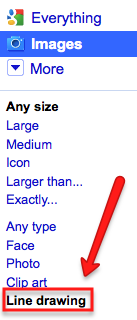
Step 1: Google 'Blank Clock Faces'. Click on Line Drawing in the side panel options
Step 2: Drag the clock face of your choice onto the Kidspiration or Inspiration page
Step 3: Draw the lines by clicking on the line tool on the toolbar
Step 4: Change the lines into arrows by going to Link - Arrow Direction
Step 5: Add a text box below the clock
Step 6: Click and drag around the whole clock picture and text box, press Ctrl or Command C and paste on another part of the page, repeat until you have covered the page. Save your activity as a template.

Use the same template to create other activities.
The same activities can be created in IWB notebook software as well. Do a search for clock and you will find a clock face, hands and digital display.
mimio, Smart notebook, Activinspire

Thursday, October 7, 2010

Webcams and Kids

With the latest of rollouts of laptops a lot of them have webcams built into them and I am amazed at how many teachers do not realise that they are there! (Apples have had them forever!) This is a valuable resource that you can use with your children.

  • read your story to the camera, turn your book around to show the picture (upload movie to wiki or blog)
  • take a photo of your art masterpiece (print out or post on wiki or blog)
  • read/act a play (place the laptop somewhere where it can see a large area, record your play, edit in Moviemaker or iMovie
  • create your avatar (use the photo editing features of your camera to add effects)
  • record your speech and watch it back (critique and make some improvements)
  • Skype or iChat with students in other classrooms
  • Skype or iChat with invited guests and ask prepared questions
  • take your laptop for a walk and show your viewer what you are seeing
  • record a newscast for podcasts